

How to Install MongoDB 8
on Ubuntu 24.04
with Authentication
Learn how to install MongoDB 8 Community Edition on Ubuntu 24.04 LTS using the official MongoDB repository. This guide covers installation, authentication, user management, firewall configuration, security hardening, production best practices, backups and troubleshooting.

What You'll Learn
- ✅ Install MongoDB 8 Community Edition
- ✅ Configure the official MongoDB repository
- ✅ Start and enable the MongoDB service
- ✅ Verify the installation
- ✅ Create an administrator account
- ✅ Enable MongoDB authentication
- ✅ Create application database users
- ✅ Secure MongoDB for production
- ✅ Configure firewall rules
- ✅ Backup and restore databases
- ✅ Troubleshoot common issues
- ✅ Follow production best practices
Installation Roadmap
System Requirements
- Ubuntu 24.04 LTS
- 64-bit Server
- Sudo privileges
- Internet connectivity
- Minimum 2 GB RAM (4 GB+ recommended)
- 20 GB+ available disk space
Before You Begin
- Create a server snapshot if available.
- Update Ubuntu packages.
- Use the official MongoDB repository.
- Never expose MongoDB directly to the Internet.
- Always enable authentication before production use.
- Create dedicated application users instead of using the administrator account.
Update Ubuntu
Before installing MongoDB, update the operating system and install the required packages.
sudo apt updatesudo apt upgrade -ysudo apt install -y curl gnupg ca-certificates
Expected Result
Ubuntu packages are fully updated and the required tools for adding external repositories are installed.
Import the MongoDB 8 GPG Key
curl -fsSL https://www.mongodb.org/static/pgp/server-8.0.ascsudo gpg --dearmor -o /usr/share/keyrings/mongodb-server-8.0.gpg
This imports MongoDB's official signing key which is used to verify packages downloaded from the MongoDB repository.
Add the Official MongoDB Repository
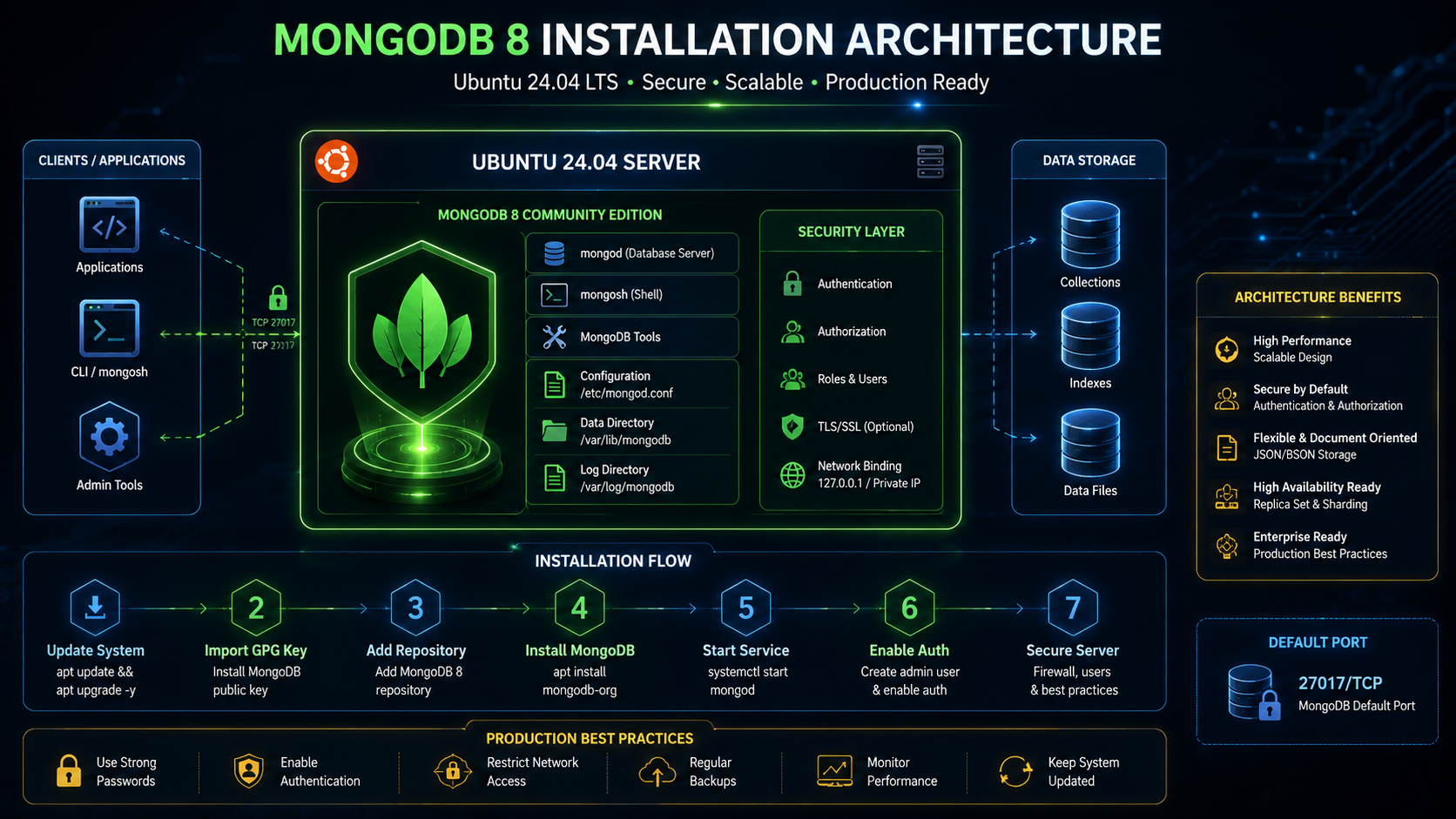
echo "deb [ arch=amd64,arm64 signed-by=/usr/share/keyrings/mongodb-server-8.0.gpg ] https://repo.mongodb.org/apt/ubuntu noble/mongodb-org/8.0 multiverse" | sudo tee /etc/apt/sources.list.d/mongodb-org-8.0.list
Ubuntu 24.04 uses the Noble repository. Using the official MongoDB repository ensures you receive the latest MongoDB 8 Community Edition packages.
Install MongoDB 8
sudo apt updatesudo apt install -y mongodb-org
Installed Components
- ✅ MongoDB Server
- ✅ mongosh Shell
- ✅ Database Tools
- ✅ MongoDB Service
Start MongoDB
sudo systemctl start mongod
Enable Auto Start
sudo systemctl enable mongod
Verify the Installation
Check Service Status
sudo systemctl enable mongod
Check Version
mongod --version
Success Checklist
- ✅ MongoDB service is running.
- ✅ MongoDB starts automatically after reboot.
- ✅ MongoDB 8.x version is displayed.
- ✅ Installation completed successfully.
Create the MongoDB Administrator
Before enabling authentication you must create an administrator account. Otherwise you will lock yourself out of MongoDB.
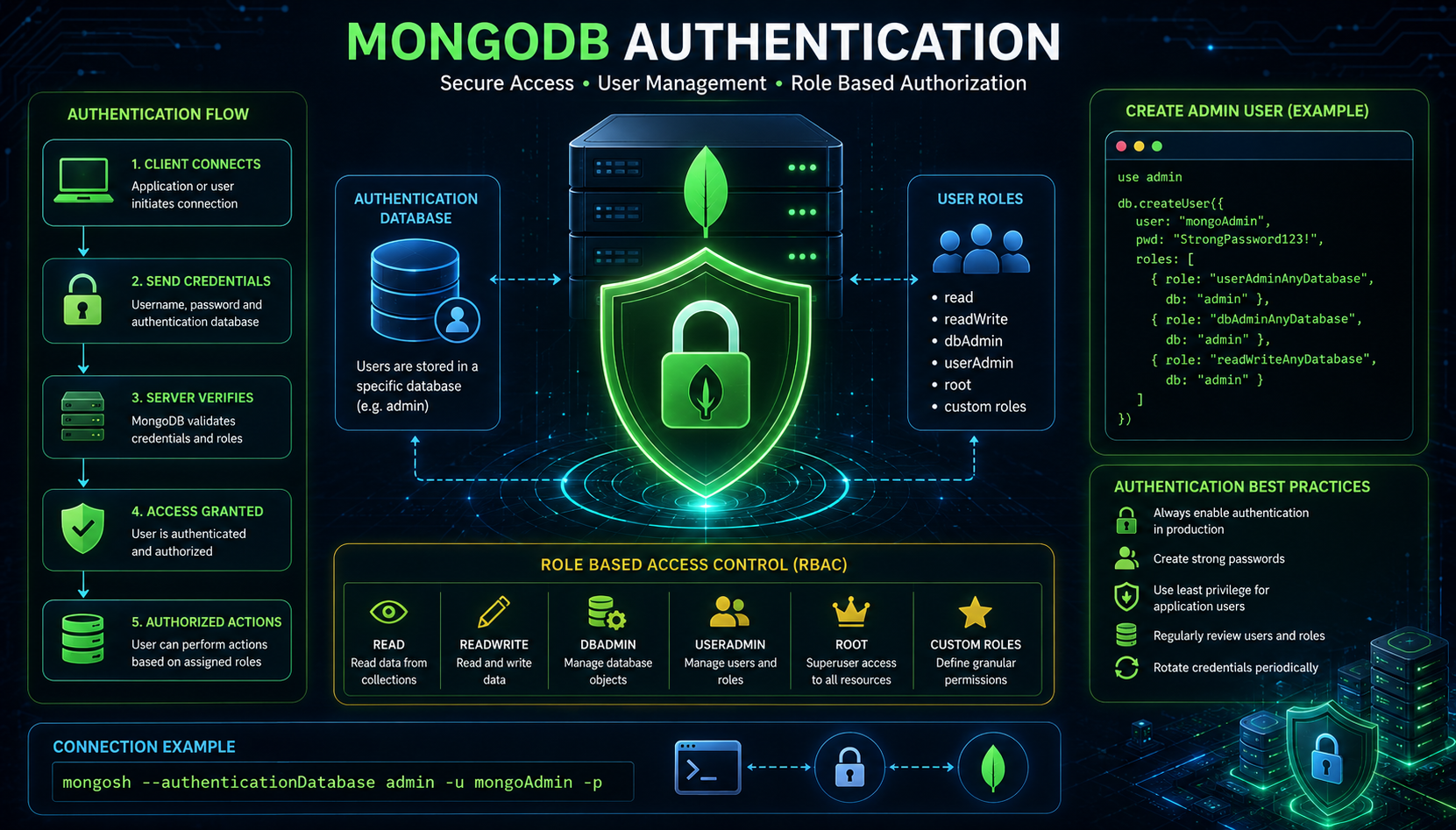
⚠ Important
Create the administrator BEFORE enabling authentication.
mongosh
use admin

db.createUser({

  user: "mongoAdmin",

  pwd: "ReplaceWithAStrongPassword",

  roles: [

    { role: "userAdminAnyDatabase", db: "admin" },

    { role: "dbAdminAnyDatabase", db: "admin" },

    { role: "readWriteAnyDatabase", db: "admin" }

  ]

})Enable Authentication
sudo vi /etc/mongod.conf
security: authorization: enabled
Best Practice
Ensure there is only one security: block in the configuration file. YAML files do not allow duplicate keys.
Restart MongoDB
sudo systemctl restart mongod
Verify Service
sudo systemctl status mongod
Login Using Authentication
mongosh --authenticationDatabase admin -u mongoAdmin -p
Expected Result
- ✅ Password prompt appears
- ✅ Authentication succeeds
- ✅ Mongo shell opens
- ✅ You can execute database commands
Create an Application Database User
use myApplication

db.createUser({

  user: "appUser",

  pwd: "ReplaceWithStrongPassword",

  roles: [

    {
      role: "readWrite",
      db: "myApplication"
    }

  ]

})
💡 Pro Tip
Never use the administrator account inside production applications. Create a dedicated user for every application using the minimum permissions required.
Secure Your MongoDB Server
Installing MongoDB is only the first step. Securing your database server is essential before hosting production applications.
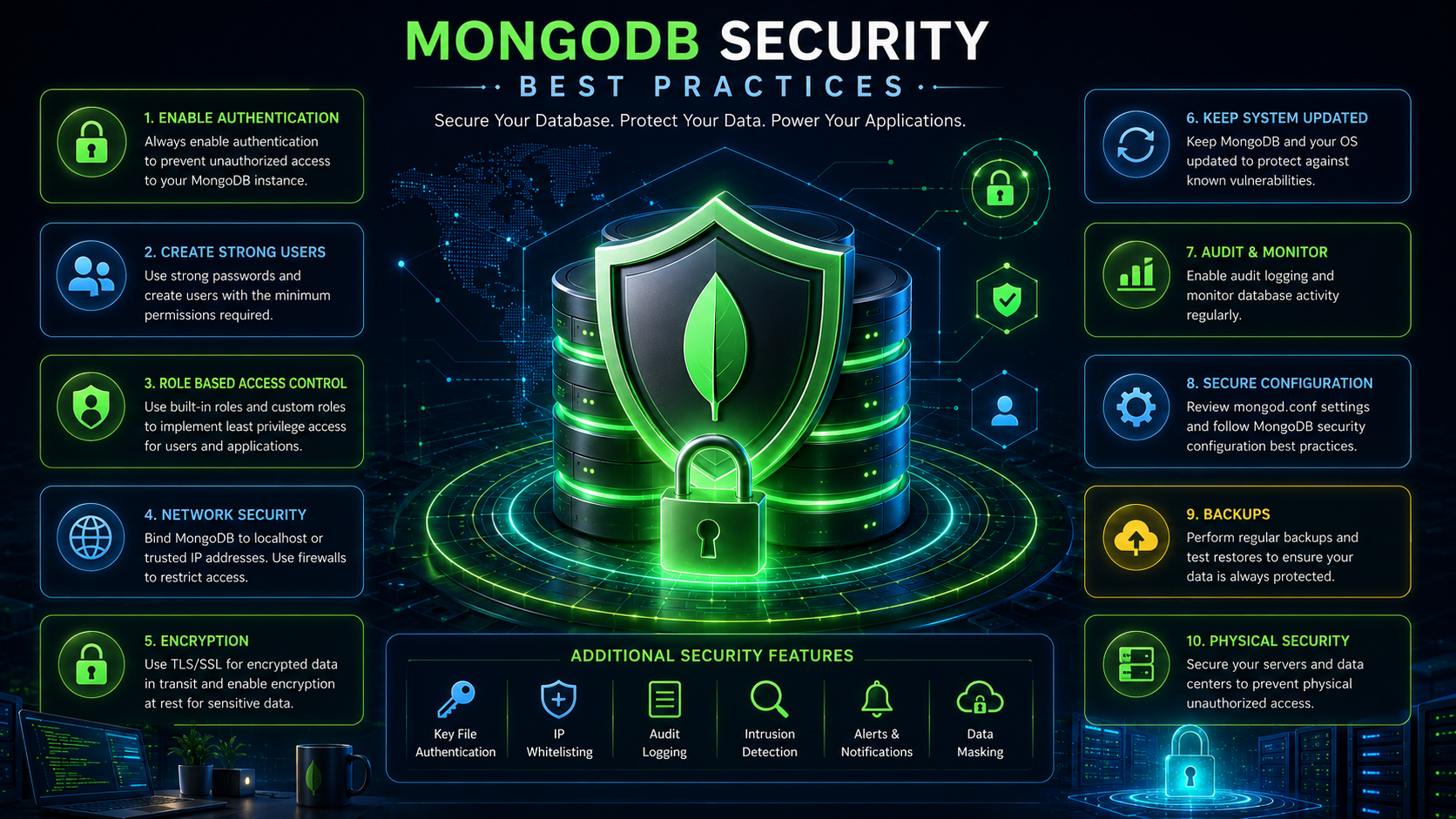
Configure the Firewall
If MongoDB is only used locally by applications running on the same server, keep it bound to localhost and do not expose port 27017 to the public internet.
sudo ufw statussudo ufw allow OpenSSHsudo ufw statussudo ufw enable
Best Practice
Avoid opening MongoDB's default port (27017) to the public internet. If remote access is required, restrict it to trusted IP addresses or connect through a VPN.
Backup Strategy
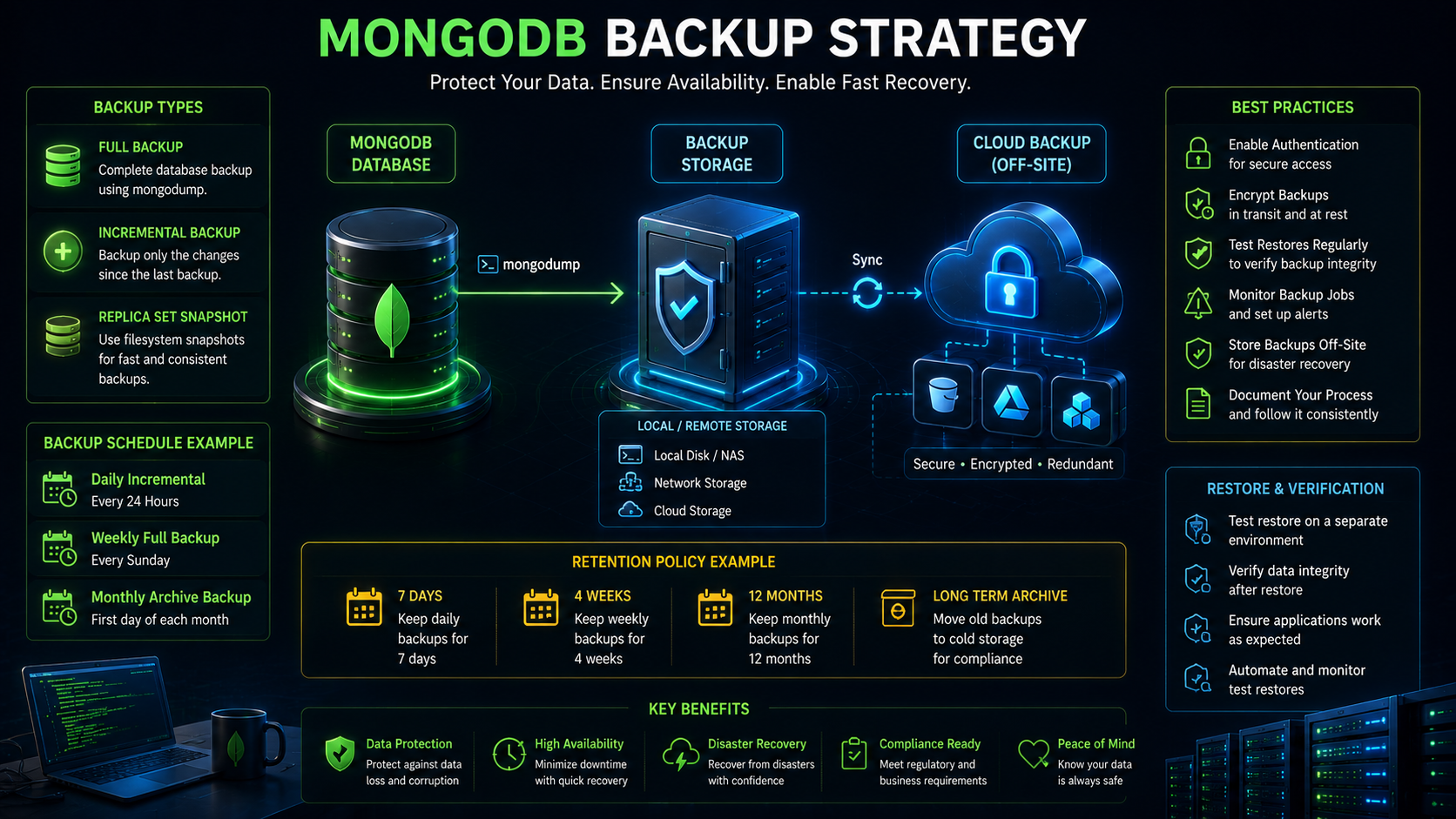
mongodump --authenticationDatabase admin -u mongoAdmin -p --out /backups/mongodb/$(date +%F)
Recommended Backup Schedule
- ✅ Daily incremental backups
- ✅ Weekly full backups
- ✅ Off-site backup storage
- ✅ Regular restore testing
Production Performance Tips
Common Problems & Solutions
| Problem | Solution |
|---|---|
| MongoDB service won't start | Check logs with journalctl -u mongod and verify configuration. |
| Authentication failed | Verify the username, password, and authentication database. |
| Cannot connect remotely | Review firewall rules and the bind IP configuration. |
| High memory usage | Monitor workloads, optimize queries, and ensure the server has adequate resources. |
Production Deployment Checklist
✅ MongoDB 8 installed
✅ Authentication enabled
✅ Administrator account created
✅ Application users created
✅ Firewall configured
✅ Backups configured
✅ Monitoring enabled
✅ Logs reviewed
✅ Updates planned
✅ Server ready for production
Need Help Managing MongoDB in Production?
CloudRevol provides fully managed MongoDB hosting, monitoring, automated backups, DevOps support, and enterprise-grade security. Focus on your applications while our engineers manage the infrastructure.