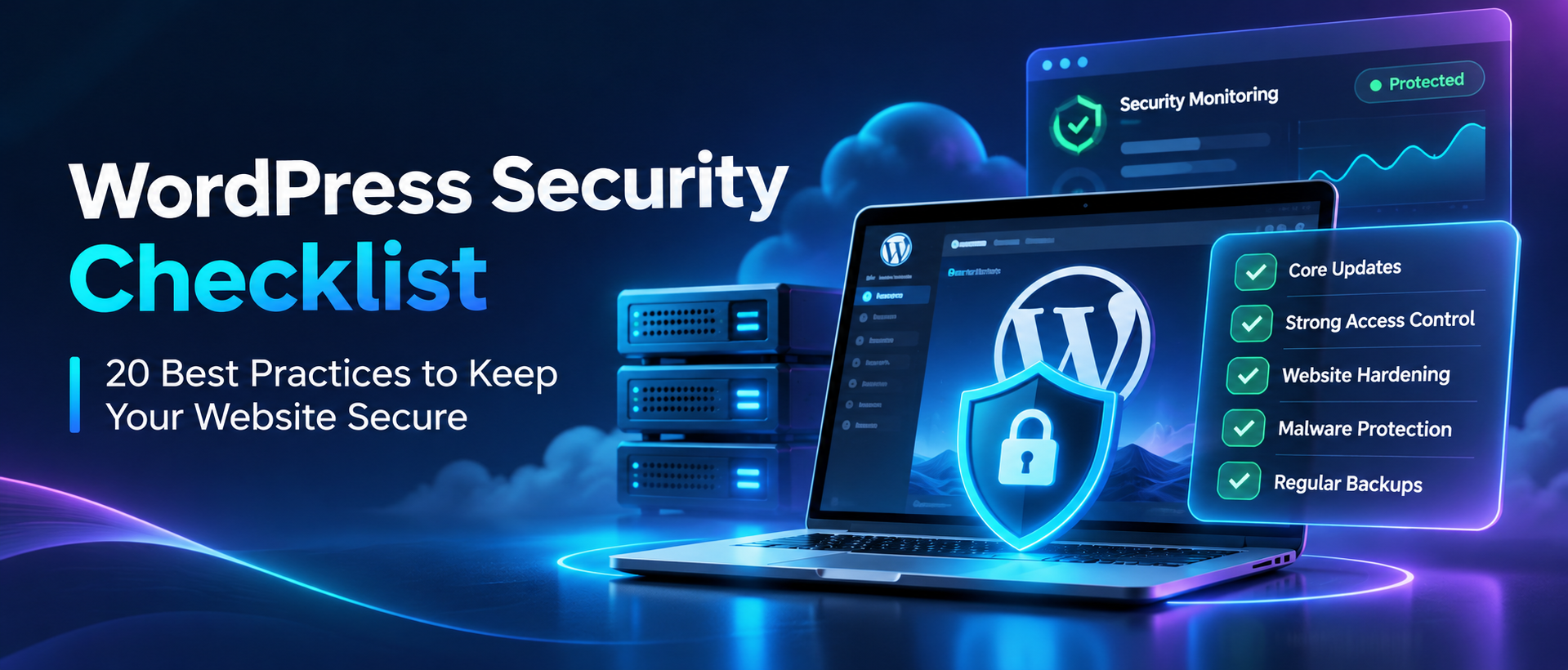
WordPress Security Checklist:20 Best Practices to Keep Your Website Secure
WordPress security is not one plugin or one firewall rule. Strong protection comes from keeping software current, limiting access, hardening the server, monitoring for change, maintaining verified backups and knowing how to recover when something goes wrong.
WordPress Security Is Risk Reduction, Not a One-Time Fix
A secure WordPress environment uses multiple layers. Updates remove known vulnerabilities, access controls reduce who can make dangerous changes, hardened permissions limit impact, monitoring helps detect unexpected activity, and verified backups support recovery. The goal is continuous risk reduction.
Quick WordPress Security Checklist
01.Keep WordPress Core Updated
02.Update Plugins and Themes
03.Delete Unused Plugins and Themes
04.Install Only From Trusted Sources
05.Use Strong, Unique Passwords
06.Enable Multi-Factor Authentication
07.Apply Least-Privilege User Roles
08.Protect Login and Administrator Access
09.Use HTTPS Everywhere
10.Disable Dashboard File Editing
11.Use Safe File Permissions and Ownership
12.Protect wp-config.php and Secrets
13.Use a Web Application Firewall
14.Secure the Database Layer
15.Maintain Tested Backups
16.Monitor File Integrity
17.Scan for Malware and Suspicious Files
18.Enable Activity and Security Logging
19.Secure the Hosting and Server Environment
20.Prepare an Incident Response and Recovery Plan
🔐
Limit Access
Reduce privileged accounts, exposed services and unnecessary entry points.
🧱
Contain Damage
Use permissions, isolation, backups and least privilege to reduce impact if something is compromised.
📡
Monitor & Prepare
Detect unexpected changes and keep a tested recovery plan.
01
Keep WordPress Core Updated
Run a current supported WordPress release and apply security updates promptly.
Best Practice
✓Review Dashboard → Updates regularly.
✓Use automatic security updates where appropriate.
✓Test major upgrades on staging before production.
02
Update Plugins and Themes
Plugins and themes are part of your attack surface. Patch active components and replace software that is no longer maintained.
Best Practice
✓Update active plugins and themes promptly.
✓Review changelogs for security releases.
✓Replace abandoned or unsupported extensions.
03
Delete Unused Plugins and Themes
Inactive software can still leave executable files on the server.
Best Practice
✓Delete unused plugins rather than only deactivating them.
✓Keep only themes you actually need.
✓Review installed components regularly.
04
Install Only From Trusted Sources
Unknown or modified packages may contain backdoors or unsafe code.
Best Practice
✓Prefer WordPress.org or reputable vendors.
✓Avoid nulled or pirated plugins and themes.
✓Review vendor reputation and update history.
05
Use Strong, Unique Passwords
Administrator credentials are high-value targets.
Best Practice
✓Never reuse administrator passwords.
✓Use generated passwords stored in a password manager.
✓Rotate credentials when compromise is suspected.
06
Enable Multi-Factor Authentication
MFA adds another verification layer when passwords are stolen or guessed.
Best Practice
✓Require MFA for privileged users.
✓Prefer authenticator apps, passkeys or security keys where supported.
✓Protect MFA recovery procedures.
07
Apply Least-Privilege User Roles
Give each account only the capabilities it needs.
Best Practice
✓Use Editor, Author or custom roles where appropriate.
✓Audit administrator accounts regularly.
✓Remove accounts no longer required.
08
Protect Login and Administrator Access
The login page is continuously targeted by automated attacks.
Best Practice
✓Rate limit repeated authentication failures.
✓Monitor unusual login activity.
✓Use additional access controls for high-risk administration environments.
09
Use HTTPS Everywhere
TLS protects credentials, cookies and administrative traffic in transit.
Best Practice
✓Redirect HTTP to HTTPS.
✓Use a valid certificate and modern TLS configuration.
✓Avoid mixed content on authenticated pages.
10
Disable Dashboard File Editing
The built-in editor can become a direct route to modifying executable PHP after account compromise.
Best Practice
✓Set DISALLOW_FILE_EDIT in wp-config.php.
✓Deploy code through controlled workflows.
✓Restrict production write access.
11
Use Safe File Permissions and Ownership
Files should not be more writable than necessary.
Best Practice
✓Keep directories and files at appropriate permissions.
✓Avoid world-writable permissions such as 777.
✓Review ownership for plugin, theme and upload paths.
12
Protect wp-config.php and Secrets
wp-config.php contains sensitive database and security configuration.
Best Practice
✓Restrict filesystem access to wp-config.php.
✓Do not commit production secrets to Git.
✓Rotate credentials and WordPress salts after serious compromise.
13
Use a Web Application Firewall
A WAF can filter malicious requests before they reach WordPress or vulnerable application components.
Best Practice
✓Use server-side or edge WAF protection.
✓Keep WAF rules current.
✓Review blocked traffic and false positives.
14
Secure the Database Layer
Database security should reduce unnecessary exposure and limit compromise impact.
Best Practice
✓Use a dedicated database user per site where practical.
✓Restrict remote database access unless required.
✓Protect database credentials and backups.
15
Maintain Tested Backups
Backups are a critical recovery control only when they are recent and restorable.
Best Practice
✓Back up both files and the database.
✓Keep off-server or offsite copies.
✓Test restores periodically.
16
Monitor File Integrity
Unexpected changes to core, plugin or theme files can indicate malware or unauthorized modification.
Best Practice
✓Verify WordPress core checksums.
✓Monitor executable PHP files for unexpected changes.
✓Investigate unexplained files in upload directories.
17
Scan for Malware and Suspicious Files
Scheduled scanning can help find web shells, injected JavaScript and obfuscated PHP.
Best Practice
✓Run scheduled malware scans.
✓Investigate detections before deleting evidence blindly.
✓Re-scan after remediation.
18
Enable Activity and Security Logging
Good logs help explain what happened before, during and after an incident.
Best Practice
✓Record administrator and security-relevant changes.
✓Protect logs from unauthorized modification.
✓Avoid logging passwords, private keys or sensitive tokens.
19
Secure the Hosting and Server Environment
WordPress cannot be secure on an unpatched or poorly configured server.
Best Practice
✓Patch the OS, PHP, database and web server.
✓Disable unnecessary services and ports.
✓Use monitoring, firewalling and appropriate isolation.
20
Prepare an Incident Response and Recovery Plan
Know how you will isolate, investigate, restore and verify the site after compromise.
Best Practice
✓Define who investigates and approves recovery.
✓Document credential rotation and restoration steps.
✓Keep known-clean recovery points and verify after restore.
Practical WordPress Hardening Commands
Review commands before running them in production and confirm your backup, ownership and deployment requirements first.
Check WordPress, Plugin and Theme Updates
wp core check-update
wp plugin list --update=available
wp theme list --update=available
Verify WordPress Core Integrity
wp core verify-checksums
Disable Plugin and Theme File Editing
define( 'DISALLOW_FILE_EDIT', true );
Review File Permissions
find /path/to/wordpress -type d -exec chmod 755 {} \;
find /path/to/wordpress -type f -exec chmod 644 {} \;
These are common baseline permissions, not a universal command for every hosting architecture. Confirm ownership and writable directories before changing production permissions.
What is the most important WordPress security practice?+
Keeping WordPress core, plugins and themes updated is one of the most important controls because known vulnerabilities are often targeted after public disclosure.
Is WordPress secure by default?+
WordPress provides a strong foundation, but overall security depends on how the site, plugins, themes, user accounts, hosting environment and operational controls are maintained.
Do I need MFA for WordPress administrators?+
MFA is strongly recommended for administrator and other privileged accounts because it reduces account-takeover risk when passwords are stolen or guessed.
Should unused plugins be deactivated or deleted?+
If a plugin is no longer required, deleting it removes unnecessary code from the server and reduces the software you must maintain.
Should I disable the WordPress file editor?+
Disabling dashboard plugin and theme editing is a useful hardening measure because it removes one route for a compromised administrator account to alter executable PHP.
What WordPress file permissions should I use?+
Permissions depend on hosting architecture, but WordPress guidance commonly uses 755 for directories and 644 for files while emphasizing correct ownership and avoiding unnecessary write access.
Why are backups part of WordPress security?+
Backups provide a recovery path after malware, ransomware, accidental deletion, failed updates or unauthorized changes. They should be protected, retained separately and tested.
How can I tell if WordPress core files were modified?+
WP-CLI can compare WordPress core files against official checksums. File-integrity monitoring can also alert administrators when executable files change unexpectedly.
Does a WAF replace WordPress updates?+
No. A WAF is an additional layer that can block some malicious traffic, but vulnerable WordPress core, plugins and themes should still be patched.
How does CloudRevol help protect WordPress websites?+
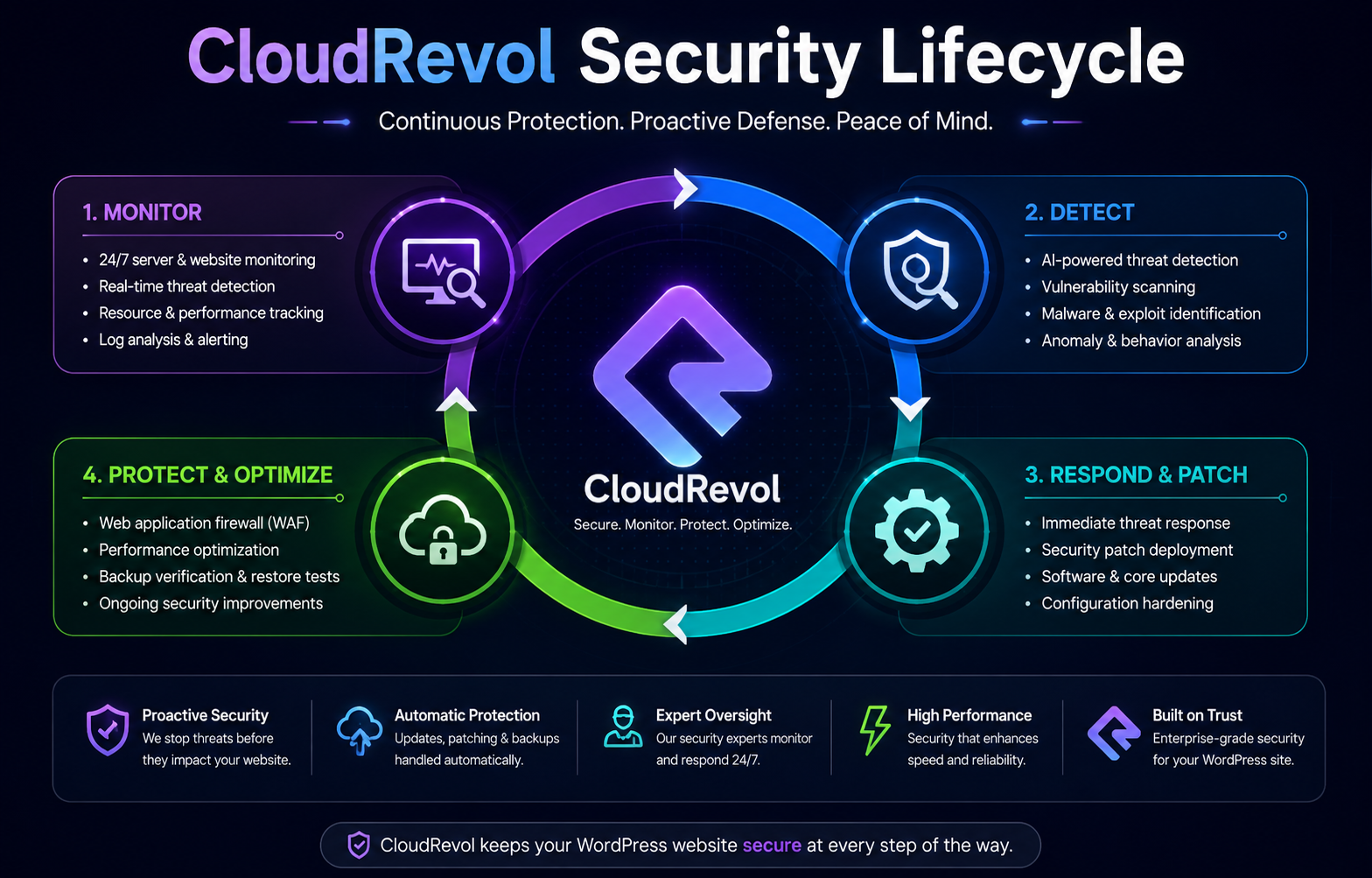
CloudRevol combines managed infrastructure, monitoring, backups, patching assistance, security hardening and expert support to help customers operate WordPress with a stronger security posture.
Keep WordPress Secure Before, During and After an Incident
Use this checklist as a recurring maintenance routine—not a one-time setup task. Review users, software, backups, monitoring and infrastructure regularly as your website evolves.